

Email: [email protected]Telefoonnummer: +31(0)20-3450010
PM5 Troubleshooting
Dit gedeelte is om je te helpen problemen met de PM5 te diagnostiseren en op te lossen. Om problemen met je PM5 te minimaliseren adviseren we je de nieuwste firmware op je monitor te hebben.
Heb je vragen of problemen met de PM5 dan kan je het beste contact opnemen +31(0)20-3450010 (Benelux) of via [email protected].
Note: Any troubleshooting instruction that references a USB Flash Drive applies only to those PM5s that feature a USB-A port (sometimes simply referred to as a "USB port"). For more information, see Which Ports Does My PM5 Have?
Symptoom
De monitor gaat aan en je kunt door de menu’s navigeren, maar als je begint te roeien of skiën blijft de monitor op nul staan.
Oplossing
- Controleer of het kabeltje van de sensor goed is aangesloten.
- Controleer of het type monitor overeen komt met je roeimachine of SkiErg. Doe dit als volgt:
- Kies in het Hoofdmenu Meer Opties.
- Kies Instellingen.
- Kies Product ID en controleer het model. Voor een Model D moet dat D of D/E zijn, voor een Model E, Dynamic Indoor Rower of SkiErg moet het D/E zijn. Heb je je monitor aangepast aan een oudere roeimachine? Dan staat er A, B of C naar gelang het type roeimachine dat je hebt.
- Voer een harde reset uit op je monitor.
Waarschuwing: Afhankelijk van de leeftijd van je monitor kan dit leiden tot dataverlies uit het geheugen van je PM. Data van je LogCard wordt niet gewist. Daarnaast zul je ook de tijd, datum en taal van je monitor opnieuw moeten instellen.
Een harde reset doe je zo:- Verwijder de batterijen/accu uit het apparaat.
- Laat ze minstens een nacht uit het apparaat.
- Plaats de batterijen/accu terug in het apparaat.
- Doet het probleem zich na de reset nog steeds voor? Probeer dan dit:
- Maak het sensorsnoer van de monitor los en controleer dit op breuken. Het is het snoer dat vanaf de onderkant van de monitor naar het vliegwiel leidt. Kom je breuken in het snoer tegen? Vervang deze dan.
- Controleer de aansluiting van het sensorsnoer op de monitor. Zitten er in de aansluiting beschadigingen? Dan moet je de monitor vervangen.
- Zien de aansluiting en het snoer er goed uit? Sluit dan het snoer weer goed aan.
- Blijft het probleem zich voordoen en heb je een andere, werkende monitor in je omgeving? Verwissel de twee monitoren dan om te kijken of het aan de monitor ligt of aan het snoer.
- Blijft de werkende monitor ook op nul staan als je roeit? Dan is het snoer kapot en zul je deze moeten vervangen.
- Werkt de omgeruilde monitor gewoon naar behoren? Dan zit het probleem in de oorspronkelijke monitor.
Is er in je omgeving geen andere PM beschikbaar? Neem dan contact op met Concept2 of je dealer voor verdere hulp. Gebruik je de PM in een sportschool of een andere situatie waar het kan voorkomen dat iemand het apparaat bespuit met schoonmaakmiddel? Controleer dan de binnenkant van het apparaat en de printplaat op vervuiling. Dit doe je zo:
- Demonteer de PM.
- Controleer de printplaat. Zie je vuil zitten op de printplaat? Neem deze dan af met een vochtig doekje.
- Laat de printplaat drogen en zet de PM weer in elkaar.
Blijft het probleem zich voordoen of zag je geen vuil op de printplaat? De PM moet dan vervangen worden.
Symptomen
- Je PM geeft aan dat de batterijen bijna leeg zijn, terwijl ze nog vol zouden moeten zijn.
- Je gebruikt monocelbatterijen in je PM en deze gaan te kort mee.
Oplossing 1
Deze oplossing is van toepassing op PMs die met één van de volgende apparaten werken:
- Model D Indoor Rower
- Model E Indoor Rower
- Dynamic Indoor Rower
- SkiErg
Op de volgende manier kom je erachter of het probleem te maken heeft met de batterij of het snoer van de generator.
- Haal de batterijen uit de PM.
- Controleer of het snoer van de generator goed is aangesloten.
- Begin te roeien/skiën op je apparaat.
- Gaat de PM aan en werkt de generator tenminste deels terwijl je roeit/skiet? Ga dan verder met stap 4.
- Gaat de PM niet aan? Dan moet je het snoer van de generator vervangen en hoef je deze procedure niet verder te volgen.
- Plaats nieuwe monocelbatterijen in de PM4. De PM4 moet nu aan gaan.
- Stel de taal en datum in (minstens het jaar).
- Kies in het Hoofdmenu More Options, dan Utilities en dan Product ID.
- Controleer het type. Dit moet ingesteld zijn op D of D/E. Is deze ingesteld op A, B of C? Neem contact op met Concept2.
- Gebruik je een PM? Controleer dan of de firmware is geüpdate naar de meest recente versie. Dit is vooral belangrijk als je PM4 draait op versie 16 of lager. Met oude firmware werkt de oplaadbare batterij na een tijdje helemaal niet meer. Je PM4 zal het weer prima doen nadat je de firmware hebt geüpdate en de batterij volledig heeft opgeladen.
- Druk op Menu|Back totdat je terug bent in het Hoofdmenu.
- Kies Just Row/Ski.
- Begin te roeien/skiën:
- Begint de teller te lopen? Dan werkt de generator weer. Ga naar stap 10.
- Begint de teller niet te lopen? Vervang dan eerst de generator voordat je verder gaat.
- Stop, druk op Menu|Back terwijl het vliegwiel nog draaiten wacht 30-60 seconden. Krijg je een “Low battery”-melding? Vervang dan eerst de generator voordat je verder gaat.
- Heb je een PM4? Verwijder dan de monocelbatterijen en plaats de oplaadbare accu.
- Heb je een PM4? Verbind je de PM4 voor een nacht met een USB-poort van je PC om de batterij op te laden. Let op: Zorg dat je PC actief blijft en de Sleep-modus uitstaat, anders kan de batterij niet goed opgeladen worden.
Oplossing 2
Deze oplossing werkt alleen voor monitors die gebruikt worden met een Model A, B of C Indoor Rower.
Onder normale omstandigheden gaat een set Alkaline monocel-batterijen ongeveer 350 uur mee. Is dit niet het geval? Doe dan het volgende:
- Controleer je firmwareversie: Kies in het Hoofdmenu More Options > Utilities > Product ID. Het gebruik van de meest recente versie kan helpen, aangezien deze de microprocessor efficiënter gebruikt dan oudere versies.
- Controleer of de monitor na het roeien/skiën automatisch uitgaat na zes minuten (dit gebeurt niet als de PM is aangesloten op een computer, bij wedstrijdroeien of tijdens bepaalde intervallen). Gaat het apparaat niet automatisch? Neem dan contact op met Concept2.
- Controleer de batterij: ga in het Hoofdmenu naar More Options > Utilities > Battery. Is het niveau van de batterij nog 80% of meer? Dan zou dit niveau met niet meer dan 1% per dag mogen zakken. Doet hij dat wel? Dan is er waarschijnlijk schade aan de printplaat en zul je het apparaat moeten vervangen. De meest voorkomende oorzaak in sportscholen is het bespuiten met schoonmaakmiddelen.
Symptom
The port (or jack) for the USB cable is loose. On a PM5, this port is on the back of the monitor and is located directly beneath the race system jacks.
Resolution
The USB cable port has broken off the circuit board. To resolve the issue, the PM must be replaced.
Symptoom
Een of meer knoppen op de monitor werken niet (vaak de Menu|Back-knop).
Oplossing
Dit is een hardwareprobleem, veroorzaakt door roestvorming op de printplaat. De PM moet worden vervangen.
If you have tried to update the firmware in your PM more than once and are encountering problems, follow the procedure below to reset the PM.
This topic applies to all PM3s, PM4s and PM5s when updating firmware using the Concept2 Utility and a USB cable.
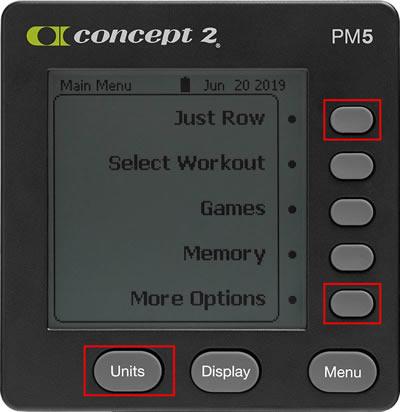
- Simultaneously press and hold the Change Units button, as well as the first and fifth gray buttons on the right (see image).
- While holding these buttons, reset the monitor using a paper clip and the reset button on the back of the monitor.
- Release the buttons when the PM displays "Concept2 Flash Loader.”
- If the issue is not resolved, close and restart the Concept2 Utility. If the issue persists, try rebooting your computer and attempting the update again.
If you have performed the reset and are still encountering problems with the update, please note the PM screen contents (error messages, etc.) and contact Concept2 for assistance ([email protected] or 800.245.5676).
Note for MacBook Users: If you have attempted the update multiple times without success, try another USB port. Some MacBook users have reported that this resolved the issue. If the problem persists, contact Concept2 for assistance.
For additional firmware update troubleshooting, see Concept2 Utility Troubleshooting.
Encountering Errors
If you encounter an error during the firmware update, recover the PM by taking the following steps and trying again:
- Remove all other USB devices (printers, scanners, hubs, and so on) while updating your PM.
- Try connecting your PM to a different USB port. Concept2 recommends plugging in directly to a USB port on your computer and not using a hub.
- Try the update on another computer.
If you encounter a problem, we would like to hear from you. Please email [email protected] or contact Concept2 at 800.245.5676.
Symptom
Attempting to update the PM5 firmware with the USB flash drive results in a failure.
Resolution
Please ensure you have good batteries in your PM5, reset the monitor using the Reset button on the back, and try the update via USB flash drive again. If the update fails after this attempt, perform the update using a USB cable and the Concept2 Utility instead. If using the Concept2 Utility to update the firmware also fails, contact Concept2 for assistance by emailing [email protected] or calling 800-245-5676..
Symptoom
De monitor werkt naar behoren, maar er missen lijnen van pixels op het scherm.
Oplossing
Het LCD-scherm is kapot en moet worden vervangen. Je kunt het LCD-scherm zelf vervangen of als je wilt, de hele monitor.
Symptom
While actively rowing or skiing, certain values (namely the units: pace, watts and calories) are missing.
Resolution
Long term: Update to the latest firmware.
Short term: Access the details for a result in PM5 Memory, and press Units until either pace or watts are displayed. Then, return to the Main menu.
Symptoom
De PM5 gaat niet aan wanneer je gaat roeien/skiën (als je gaat roeien/skiën hoort de monitor aan te gaan)
does not have batteries installed and it won't turn on when you are rowing/skiing (the act of rowing/skiing should power the monitor).
Oplossing
Dit is een bekend probleem bij de PM5 met hardware versies 500–599 en Firmware Versie 20/720. Om dit op te lossen update je je PM naar Firmware Versie 22/722 of hoger.
Om te na te gaan welke hardware en welke firmware versie op je PM5 draait, selecteer je vanuit het hoofdmenu van je PM5, Meer Opties> Instellingen > Product ID.
Symptoms
- You have nothing plugged into the USB flash drive port on your PM5, and the PM5 has displayed a "USB Overload" error.
- You receive a "USB Overload" error when you have inserted a USB flash drive that has either worked in other PM5s before or is a USB flash drive that you believe should work in the PM5.
Resolutions
- Upgrade your PM5 to Firmware Version 22/722 or higher and try again.
- If the problem persists, replace the batteries in the PM5.
- If the problem persists after attempting the first two resolutions, please contact us for further assistance.
Symptom
When doing an interval workout the monitor appears to freeze after a certain number of intervals.
Resolution
You are using ReRow/ReSki. This repeats a prior workout with the PaceBoat/PaceSkier set to the speed of the earlier workout. ReRow/ReSki workouts will only have the same number of intervals as the original. If you want to do a larger number of intervals, you will need to create a new interval workout.
Symptom
Your Bluetooth Smart heart rate monitor (e.g. Polar H7, Polar H10, and many from other manufacturers) is not connecting to the Concept2 PM5.
Resolution
When you first put on your belt, it turns on and starts “advertising” or looking for a connection. The first device (PM5, your phone, etc.) that connects gets the connection and now no other device can connect. In some cases, apps on your iPhone or Android phone may keep the connection active even if you don’t expect it to, such as after switching to another app. If the phone is connected to your Bluetooth belt, the PM5 cannot connect. In other words, the belt can only be connected to one device at a time.
To get the belt connected to the PM, try this:
- Go into your phone’s settings and turn Bluetooth off, or turn the phone off entirely.
- After a few moments, try to connect the belt to your PM5.
- Once it connects, you can turn your phone’s Bluetooth back on.
If you still cannot connect:
- Check to see if the belt might be connected to some other device.
- Consider if it is time to change the batteries on your belt.
Error Codes
This error code can occur if a button is stuck in the engaged position when the monitor resets or powers on.
Resolution
- Check for a button that’s stuck engaged. Press or move the button around so it pops back out.
- If this occurred after a battery exchange, remove the batteries and reinsert, paying close attention not to press a button while inserting the batteries.
- If the monitor is outside of warranty and continues to display this error message, there may be residue buildup behind the keypad that should be cleaned with isopropyl alcohol. Follow the first two steps in the PM5 Monitor LCD Replacement (PDF) instructions to expose and clean the button contacts on the circuit board. Check the circuit board for corrosion.
If steps 1-3 have been taken and the monitor continues to display the error message, the PM5 will need to be replaced.
These error codes are associated with the USB flash drive.
Resolution
We are working on a permanent solution to these issues. In the meantime, please try the task you were doing again. If the issue recurs and is consistently reproducible, please contact Concept2 at 800-245-5676 or [email protected].
This error code is associated with external software connected to the PM5.
Resolution
Error code 128 means the PM5 is having trouble with external software. This happens most frequently with the third-party rowing software RowPro. If you are using RowPro, try shutting down all programs running on your computer and then reboot the computer. You can also try connecting with a different USB port on your computer. If the error persists while using RowPro, you will need to contact Digital Rowing for support at [email protected]. If you are using Concept2 software such as the Concept2 Utility, ErgData, or Venue Racing application, please contact Concept2 for assistance.
This error code means that there is a corrupt file in the memory of the PM5 monitor.
Resolution 1:
Reset the monitor to factory defaults. Note that this will completely remove all workout data from memory.If workout data is important, follow the steps outlined in resolution 2 to repair the memory.
- Press and hold down both the Units and the Display buttons.
- While holding down these two buttons, press and release the recessed reset button located on the back of the PM5 to the lower right of the battery door.
- Continue holding the front two buttons until "Setting to Factory Defaults" is displayed on the PM5.
- Release the front two buttons.
Resolution 2:
Have the Concept2 Utility read and repair the memory. Launch the Concept2 Utility and connect the PM5 using a USB cable. From the main page of the Concept2 Utility select Maintenance and Settings, then Manage Stored Results, then Repair Data. The Concept2 Utility will read the data, repair any errors it finds, and let you know when it’s complete.
This error code can occur when the PM5 cannot deliver notifications to a mobile device at a necessary rate.
Resolution
This can happen if the mobile device goes out of range from the PM5, or if the mobile device is paired wirelessly to multiple devices such as Bluetooth speakers. The error codes can occur if the user is trying to run more than one fitness app to record the workout from the PM5 monitor. Make sure you choose only one app to record the workout and close any others that could be running in the background. ErgData is a good app to choose to record and upload your Concept2 workouts.
This error code is related to improper voltage reading, most likely related to loose batteries due to a poorly fitting battery door.
Resolution
This is most likely related to a battery door product notice you can read about on the PM5 Product Notice page. If your monitor is within this time frame and has the REV A door, then you can order the replacement door using that link. It is also recommended that you update to the latest PM5 firmware.
This error code is a result of damaged pins inside the RJ45 jack, usually caused by inserting a non-RJ45 plug into this port.
Resolution 1: Replace Monitor
If this monitor is being used for racing, it is recommended that you replace the monitor.
Resolution 2: Separate Pins
If this monitor is being used for home use, you can separate the pins inside the RJ45 jacks or continue using the monitor even though the error persists.
This error code can occur when removing and replacing batteries.
Resolution
- Remove the batteries for at least 5 full minutes.
- Reinsert two D cell batteries that have a good charge.
- Reset the time and date when prompted.
- From the Main Menu press More options then press Turn Wireless On.
If error code 886 recurs after taking these steps, then contact us for more assistance, and please provide the serial number of the PM5.
This error code can occur when there is a device competing to make a Bluetooth connection with the PM5.
Resolution
Most heart rate straps can connect to one Bluetooth device at a time. If a heart rate device is connected to another device such as your phone, and you try to pair it by Bluetooth to the PM5, you'll get this message.
A lot of heart rate straps have both a Bluetooth channel and an ANT+ channel. A phone can only connect to the Bluetooth channel, but the PM5 can connect to the Bluetooth channel or ANT+ channel. We recommend only connecting a heart rate strap to the PM5 using ANT+ when available. On the PM5, after selecting Connect > Connect Heart RateANT+ xxxxx
This error is commonly related to heart rate, but could be related to apps on a phone or tablet. If you're not using heart rate, please let us know what apps you use with the PM5 and what devices the apps are running on.
This error code can occur after the firmware on the PM5 has been updated.
Resolution
- Remove the batteries for at least 5 full minutes.
- Reinsert two D cell batteries that have a good charge.
- The monitor will finish a previously unfinished firmware update process.
- Reset the time and date when prompted.
If error code 2220 recurs after taking these steps, then contact Concept2 at 800-245-5676 or [email protected] for more assistance, and please provide the serial number of the PM5.